 KitCut
A film's page in the Studio
Every film of yours has a page in the Studio. It is the one place where a film's work is done after it is made: its video's details on YouTube, its thumbnail, who can watch it and when, every copy of it, the film's versions, its views, its link and its files.
- Its address is kitcut.ai/studio/film/ and the film's id, the same id as in the address of the film's own page. A film made outside a project has one too.
- Ways in:
- a project's episodes: click the episode (Characters and projects);
- under a finished film on its own page: Manage, once the film is on YouTube, and Open in Studio;
- the account page's list of films: Open in Studio (Your account);
- a row of the Views page, and a video's menu on a project's Schedule;
- the publish dialog, once a film is sent: Open the video's page.
- Who sees it: the person who made the film. In a shared workspace the other members see an episode's page too, to read; publishing it and changing its video stay with whoever made it and the workspace's owner and admins (Workspaces).
- It is not the film's own page (kitcut.ai/film/ and its id), which anyone with the link can open: the video, the idea and how Claude made it (Your films). The Studio page is for the person who makes the film.
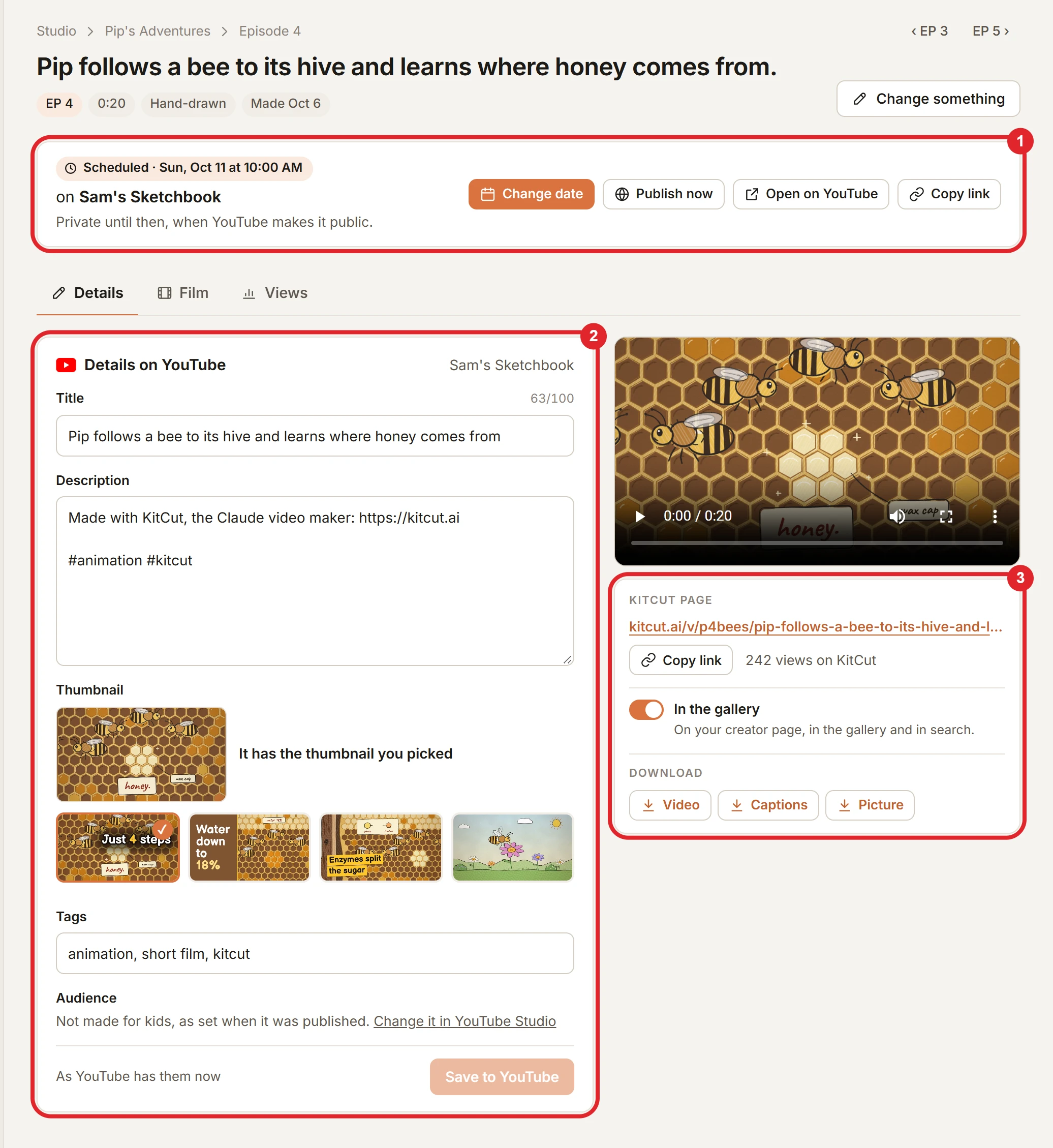
- At the top: the trail (Studio, the project, the episode: each step is a link back), then the film's title, its episode number, length, look, the day it was made and its version, with Change something (Changing a finished film). Arrows at the right go to the episode before and after.
- Where it stands, in one line under that, once the film is on YouTube or on its way: Uploading with its percentage and a bar, Processing, Scheduled with Change date and Publish now, or Public, Unlisted or Private with YouTube's views, Watch on YouTube and Copy link. The same line says when the film is on a channel twice, and when YouTube still has an earlier version than the film, with Publish version N as a new video (A film goes to a channel once).
- Three tabs: Details, Film and Views. The address keeps the tab, so a reload opens the same one.
Details: the video on YouTube
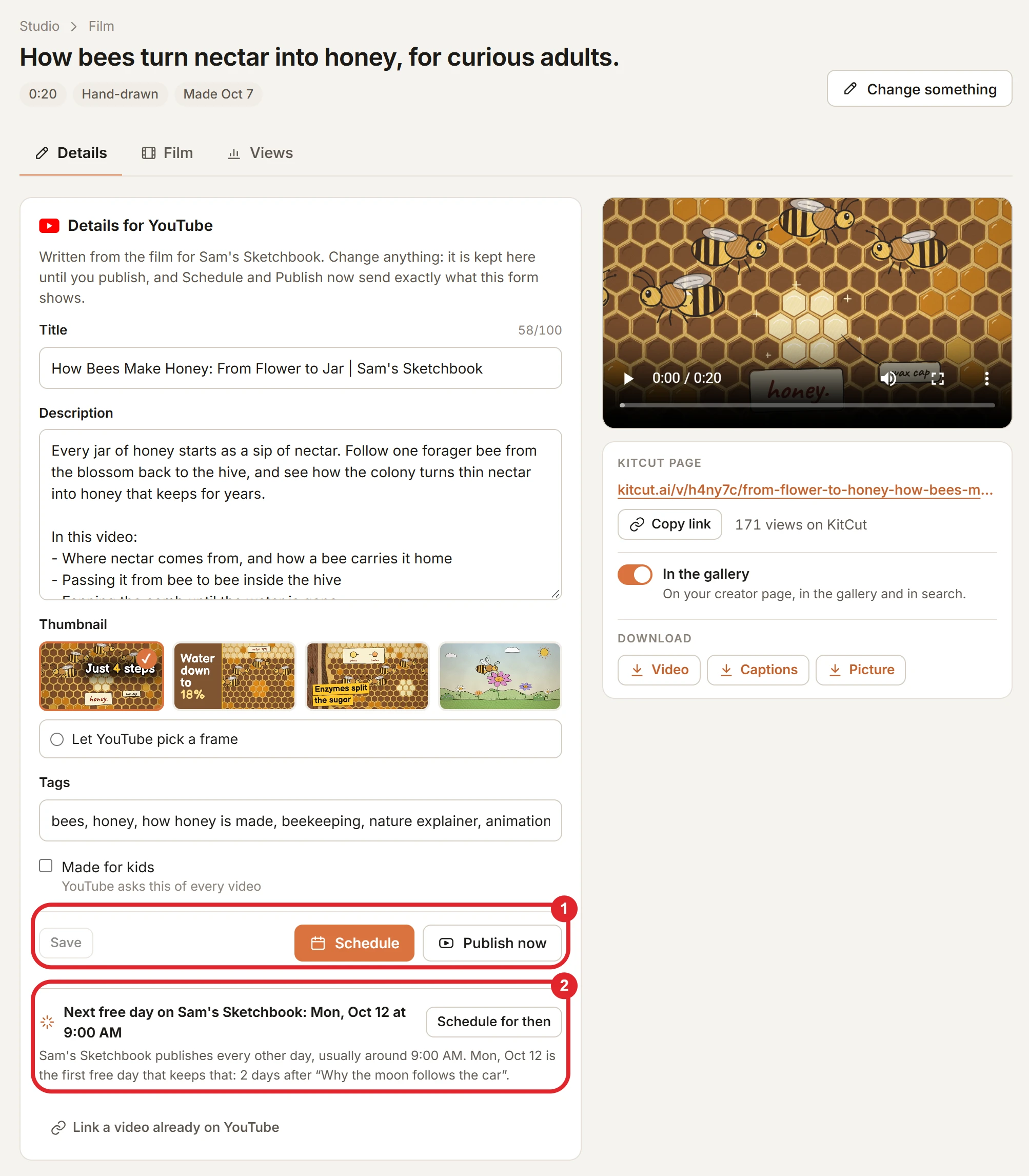
- Before the film is published, the Details are a form that is already filled in: the title, description and tags Claude wrote from the film for its channel, and four thumbnails made from it (Publishing a film). Change anything, pick a thumbnail, tick Made for kids if it is. Save keeps them on KitCut, on any device, until you publish.
- Schedule and Publish now send what the form shows. The dialog opens with these details and asks only where and when. A line under the form offers the next free day on the channel, with Schedule for then. Link a video already on YouTube is for a film uploaded by hand.
- Once it is on YouTube, the form shows the title, description and tags as YouTube has them now, read when the page opens. Save to YouTube changes them there; Undo changes puts back what YouTube has. The channel's category and language stay as they are.
- The thumbnail can be changed after publishing. The form shows the picture YouTube is using and whether the one you picked was set. Pick another of the film's four and press Use this thumbnail. If the one you picked was not set, Send it again tries once more.
- A channel that is not verified cannot use its own thumbnails: YouTube refuses them until the channel is verified with a phone number, at youtube.com/verify. The form and the publish dialog say so before you pick one. The pick is kept, and is sent again from this page once the channel is verified.
- Audience says whether the video was published as made for kids, with a link to change it in YouTube Studio.
- A channel without the fourth permission shows the details to read, with how to give it (connect the channel again) and a link to the video in YouTube Studio.
- Several copies (another channel, a second copy, one YouTube turned down) are listed under the form as "Every copy on YouTube", each with where it stands, its own buttons, and Its details, which puts that copy in the form.
- A copy that is gone from YouTube (deleted there, or its channel was) is not listed, here or anywhere else in the Studio. The film counts as not published, and can be published again.
Beside the film
- The film in a player.
- Who can watch, when the film is on YouTube once: Public, Unlisted and Private, changed on YouTube at once; a private video that was never public also has Schedule. A scheduled video has no panel here: its day is said once, on the line at the top of the page, with Change date (which also takes it off the schedule) and Publish now (Changing a scheduled video).
- KitCut page: its link with Copy link, how often its KitCut pages were opened, and In the gallery. On, the film is on your creator page, in the gallery and in search; off, only people with the link can open it.
- Download: the video (MP4), its captions (a .vtt file, which YouTube takes as subtitles) and its picture.
Film: the film itself
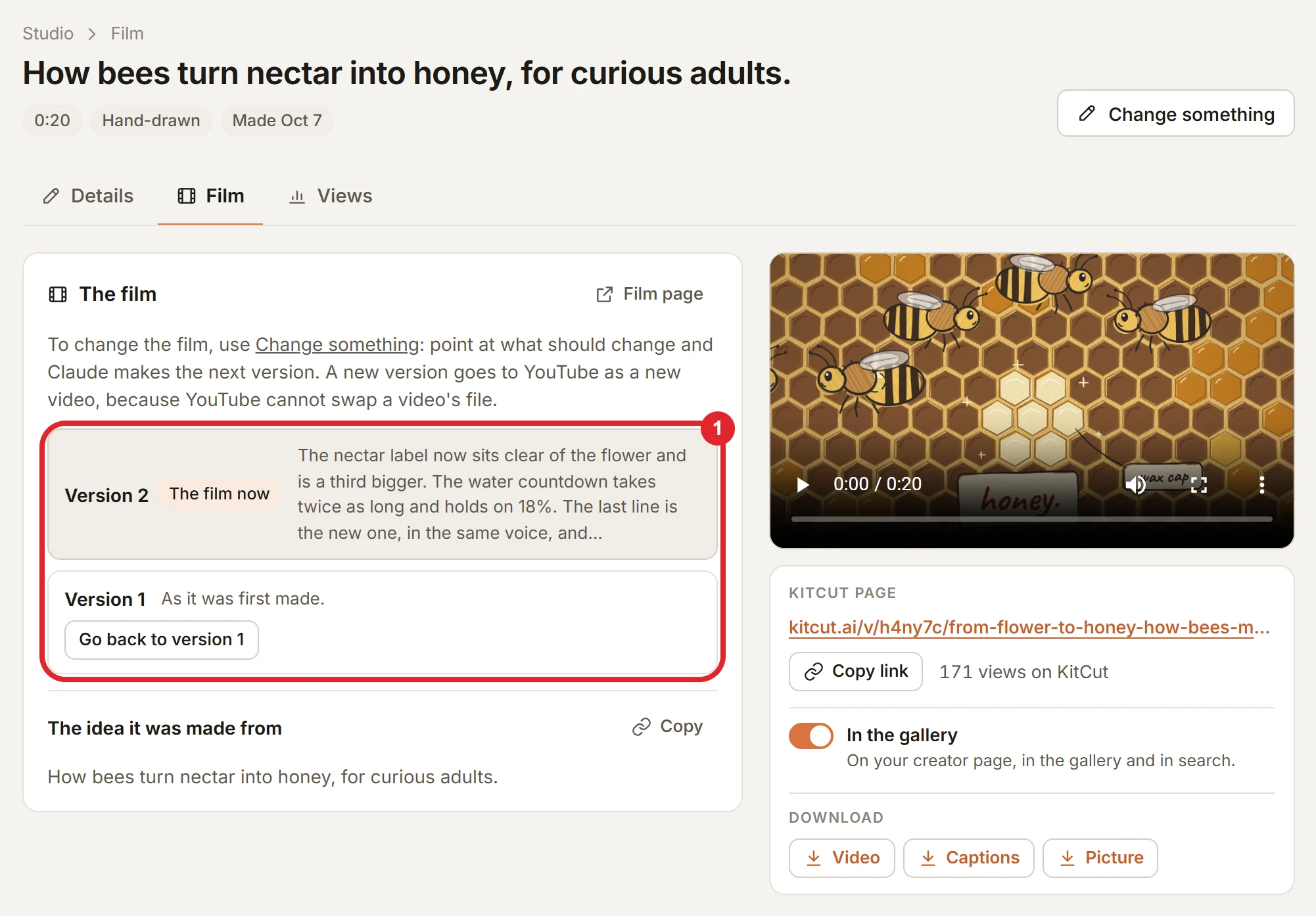
- Its versions, newest first: which one is the film now, which one each YouTube channel has, and what changed in it. Go back to version N makes an earlier one the film again.
- Change something opens the film with its notes, and brings you back to this page when you are done.
- Make one like it, on an episode, puts its idea in the project's box, to change and make as a new episode.
- The idea it was made from, with Copy. A film that carries the KitCut mark has Remove them here (Removing the mark from a film).
Views
- YouTube's views and KitCut's page views for this film alone, over 7, 28 or 90 days or all time: a number, a small trend and a bar a day for each. They are two counts and are never added together (Views).
- A film that is still being made, or did not finish, has its page too, with a link to its own page, where the making shows.