 KitCut
Workspaces
Everything you make in KitCut belongs to a workspace: its plan and credits, its projects (with their characters, pictures and approved voice lines), the services it connects, and the defaults its projects start from.
Your workspace
- Every account has one, made when you sign up and named after you. You can rename it (Settings, General): people you invite see its name.
- Your plan, your credits, your projects and your connected services are your workspace's.
- The free monthly credits go to your own workspace.
- Working with other people is inviting them into it. There is nothing to convert or create first: Settings, Members, Invite someone.
Working together
Once you invite people, your workspace is shared with them:
- Your plan and credits. Every film made in your projects uses your credits, whoever makes it. Only you choose your workspace's plan and manage its billing.
- Shared projects. Everyone in it works on its projects, with their characters, pictures and voice lines, and makes their episodes. Each episode says who made it. Archiving a project is for its owner and admins.
- Publishing to YouTube. A workspace's YouTube channels are everyone's in it: the channels its owner connected, and any an owner or admin connects for it under Settings, Connections. Whoever made an episode publishes and schedules it there, as can the workspace's owner and admins, and everyone in the workspace can move a scheduled video, change who can watch it and edit its title. A member can also publish to a channel they connected on their own account page; that video is theirs to change. An episode goes to a channel once whoever published it (A film goes to a channel once).
- Every film, in one list. All videos in the Studio's sidebar shows every film made in the workspace, by everyone in it, with filters for who made it, its project and its status (All videos). Everyone in the workspace can open and watch any of them.
- Its films. Whoever made a film can stop it, continue it, change it once it is finished (Changing a finished film) or keep it off the gallery; so can the workspace's owner and admins. A round of changes uses the workspace's credits, like the film did.
- Shared services. An ElevenLabs account connected to it gives everyone in it its voices, without anyone seeing the key.
- It stays yours. Your own workspace cannot be handed to someone else or left; make someone an admin to share running it.
Switching workspace
When you are in more than one workspace (your own, and one you joined), you can switch between them at any time:
- The workspace menu. The workspace you are in is shown beside the KitCut logo at the top of every page. Its menu lists every workspace you are in, your own first, and opens the one you pick: its projects, its settings, or its All videos.
- In Settings. The Workspace choice beside the workspace's name, at the top of Settings, opens the same section of another workspace's settings. Settings, Your workspaces lists them all, with Switch and Projects beside each.
- The sidebar stays in it. In another workspace, the Studio's sidebar shows that workspace's projects, and its All projects and New project open and add to that workspace's projects, not your own. The sidebar lists the six most recent; All N projects below them opens the whole list in the sidebar, and Show fewer closes it.
- When you sign in. Signing in on the home page or in the Studio asks which workspace to open. Tick Open this one every time I sign in to skip the question from then on. Change it in Settings, Your workspaces, When you sign in: a workspace, or Ask me each time. Signing in from any other page (a film, an invitation) goes back to that page.
Members and roles
| Role | What it can do |
|---|---|
| Member | Make films in the workspace's projects, from its credits; edit projects; pick voices from its connected services; see its credits left |
| Admin | Also: invite and remove members, connect and disconnect services, set the workspace's defaults, manage its plan and billing, archive projects |
| Owner | Also: change roles and choose the plan. There is one owner: the person whose workspace it is. |
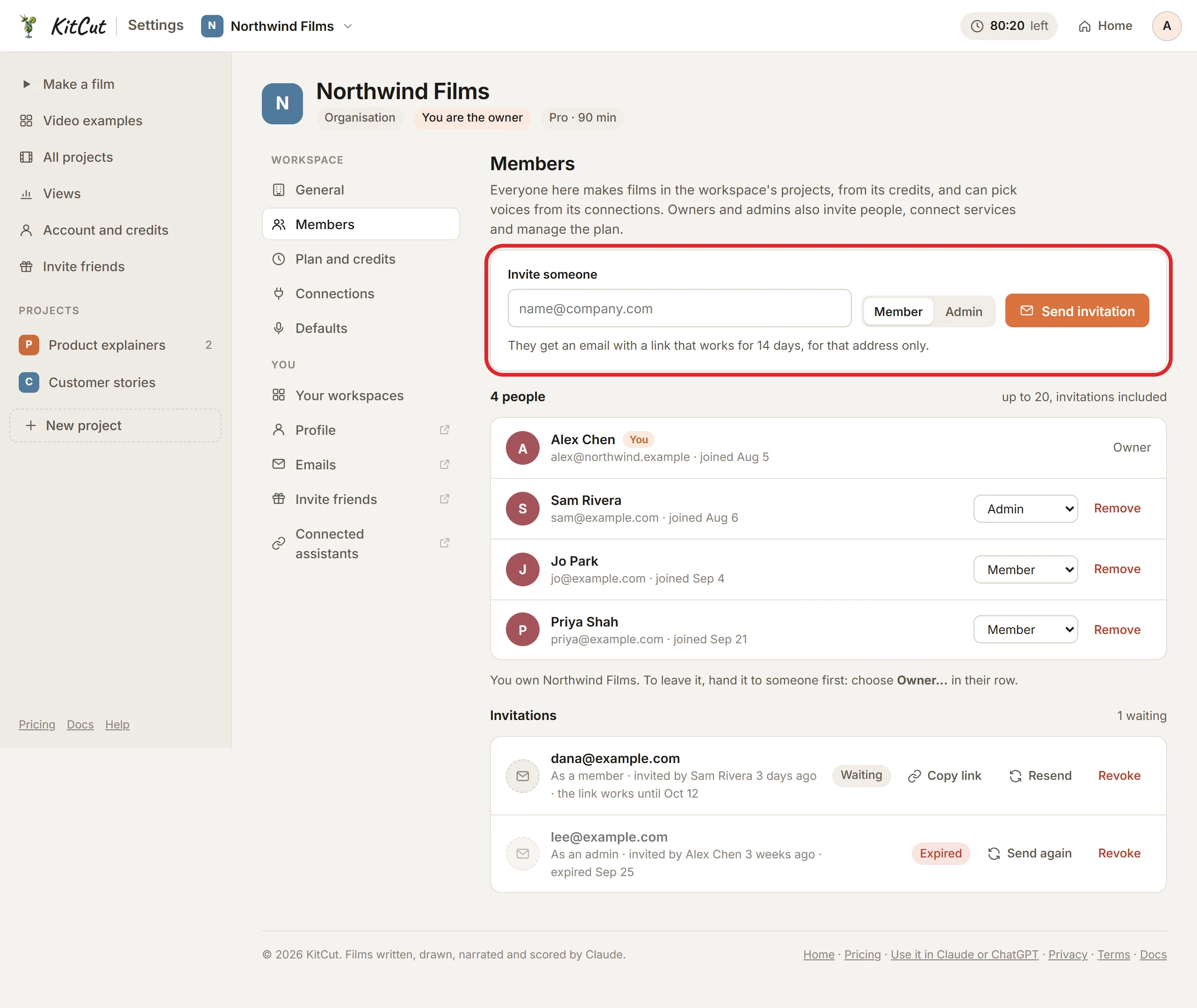
- A workspace holds up to 20 people, owner included, and the invitations waiting count too.
- Inviting someone: Settings, then Members, then Invite someone, with their email address. Owners and admins invite people; only the owner invites someone as an admin.
- The invitation is an email with a Join button. Its link works for 14 days, and only for the address it was sent to: whoever else opens it is told whose it is. While it waits, the Members page can copy its link, send it again (which starts its days again, with the same link) or revoke it.
- Changing a role is the owner's: the choice beside each person, Member or Admin.
- Removing someone: admins remove members; only the owner removes an admin; nobody removes the owner. Someone removed loses access to the workspace at once. The films they made in it stay the workspace's.
- Leaving someone else's workspace: Settings, then Members, then Leave beside your own name. Your own workspace cannot be left.
Joining someone's workspace
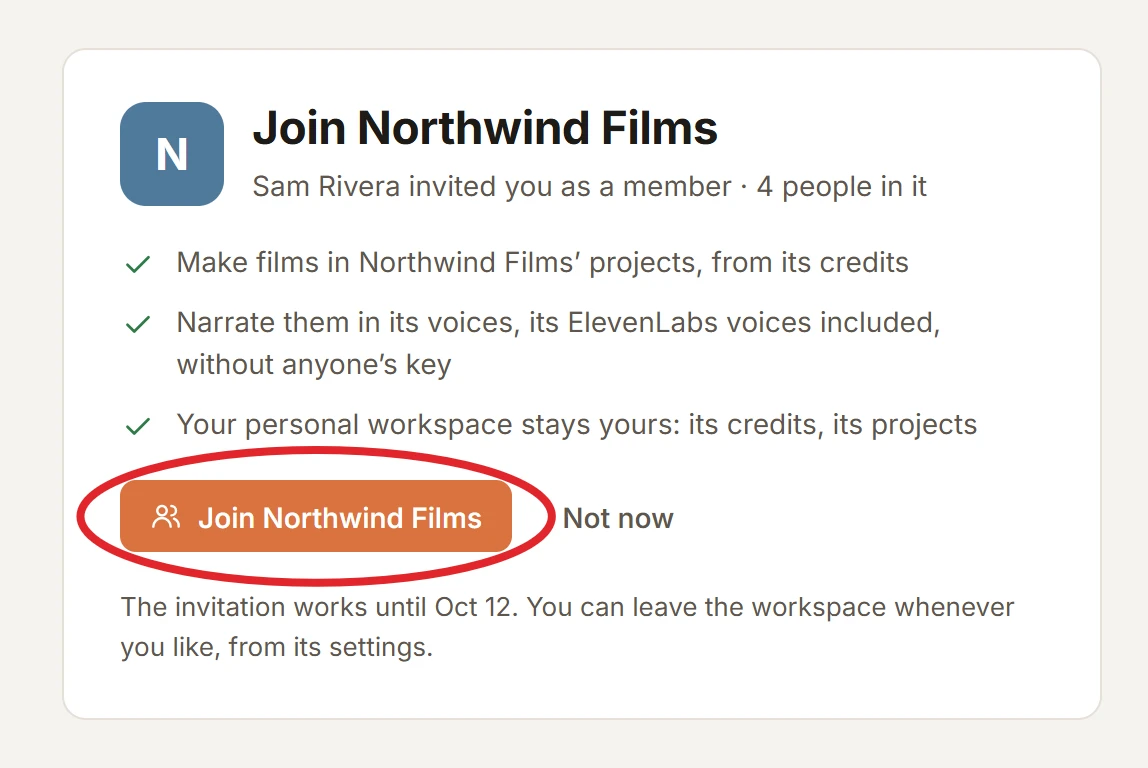
- Open the invitation email and press Join, or find it under Settings, Your workspaces, Invitations for you.
- Sign in with the address the invitation was sent to. Signed in with another one, the page says so, with a button to sign out and sign in again.
- Press Join. Their workspace opens, and its name is in the workspace menu from then on.
An invitation that has expired or was revoked says so; ask whoever sent it for a new one.
Settings
Settings has two parts:
- Workspace: General (its name and address), Members, Plan and credits, Connections, and Defaults (the narrator its projects start with: Narrator voices).
- You: your workspaces, profile, emails, invitations and connected assistants, whichever workspace is open.
A section a role may not change is shown read-only, with who can change it.